

Toon Boom Sign Up
This section goes over first time installation, scroll down to see instructions for renewals.
Follow these instructions on how to sign up for Toon Boom:
Here’s how to download your Harmony and Storyboard Pro licenses:
1. Click on link here: coe.toonboom.com
2. Create an account using the email address provided by your school
3. Complete Profile And Follow On-screen instructions
4. Verify your Email and/or Validate your student status if prompted
After creating an account, you will be brought to a screen that looks like this:
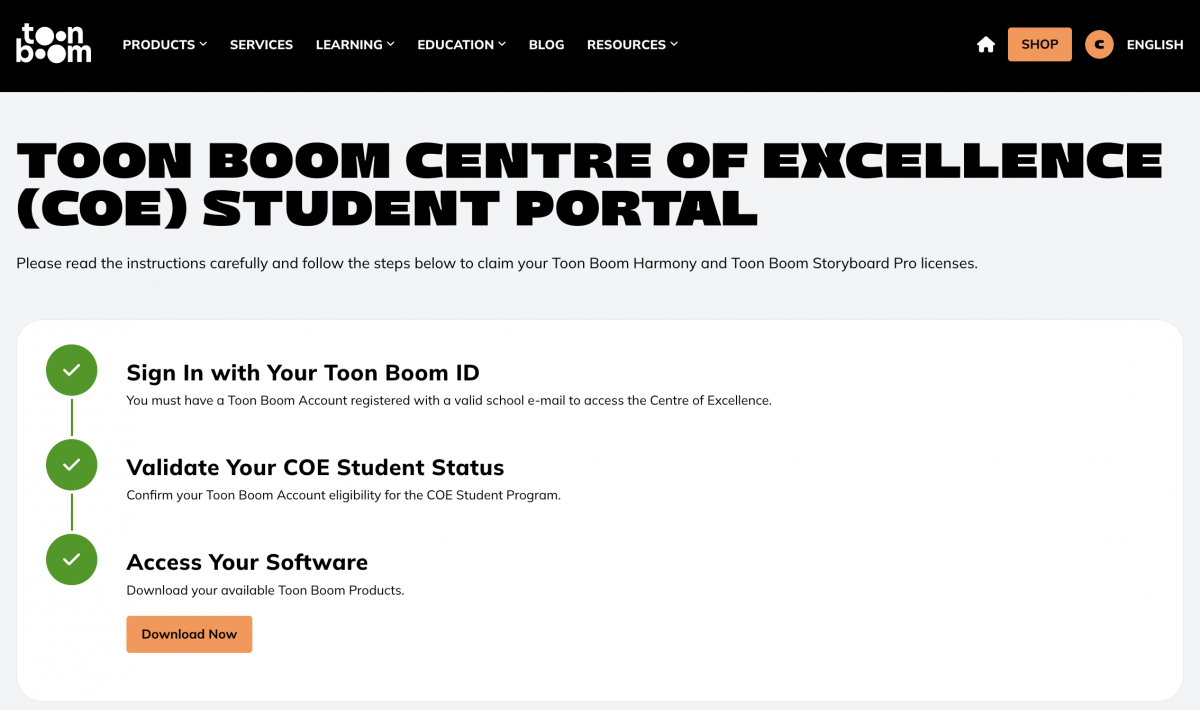
Select the Download your Software button. Select your perfered verison of Harmony and/or Storyboard Pro, then click download.
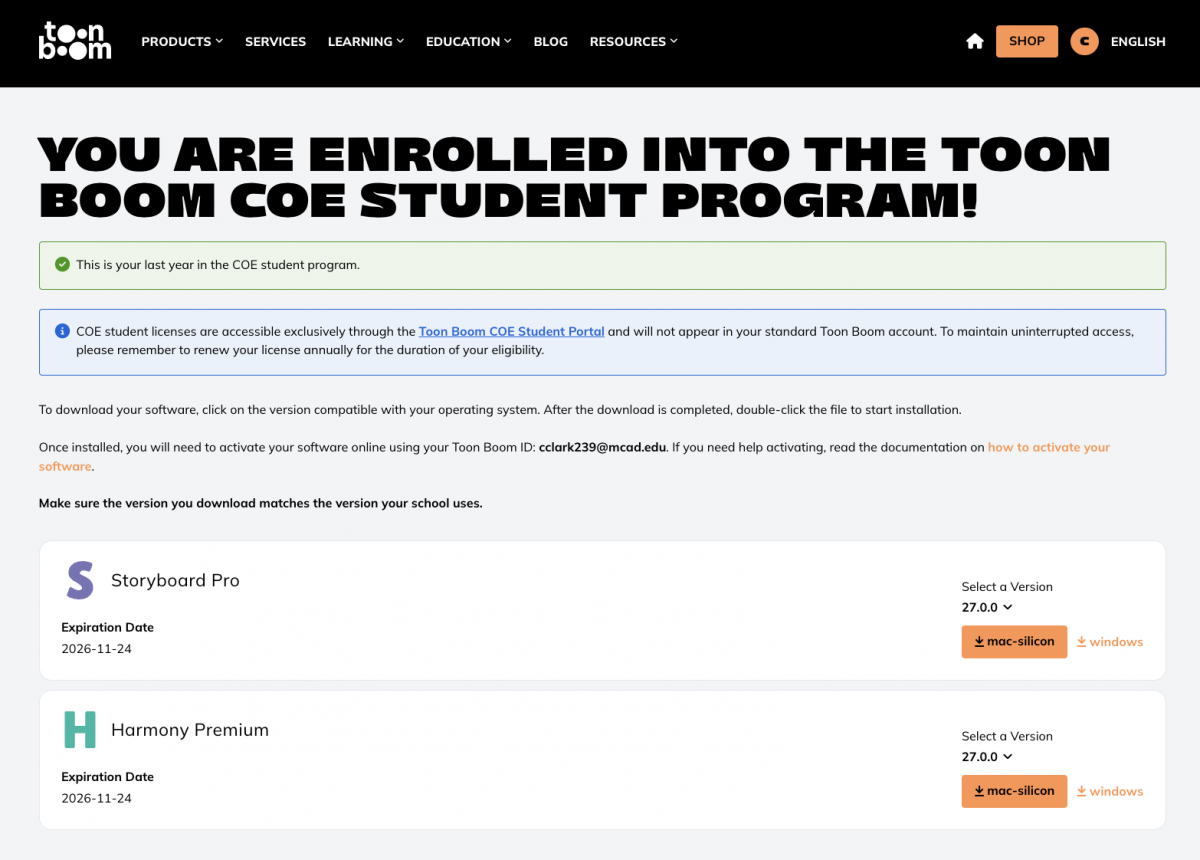
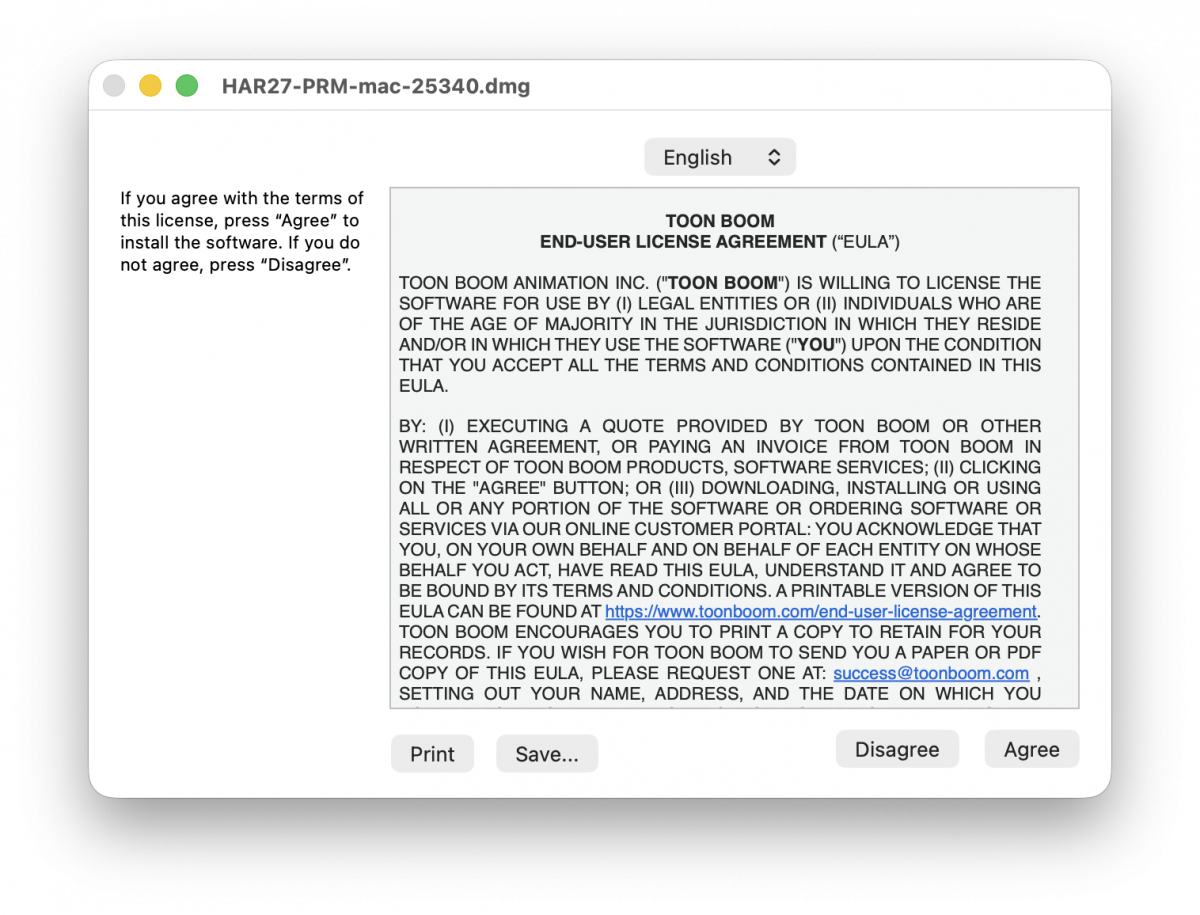
Double click the .dmg file in your Downloads folder via Finder. Once it launches, read and agree to the software terms and follow prompts for installation.
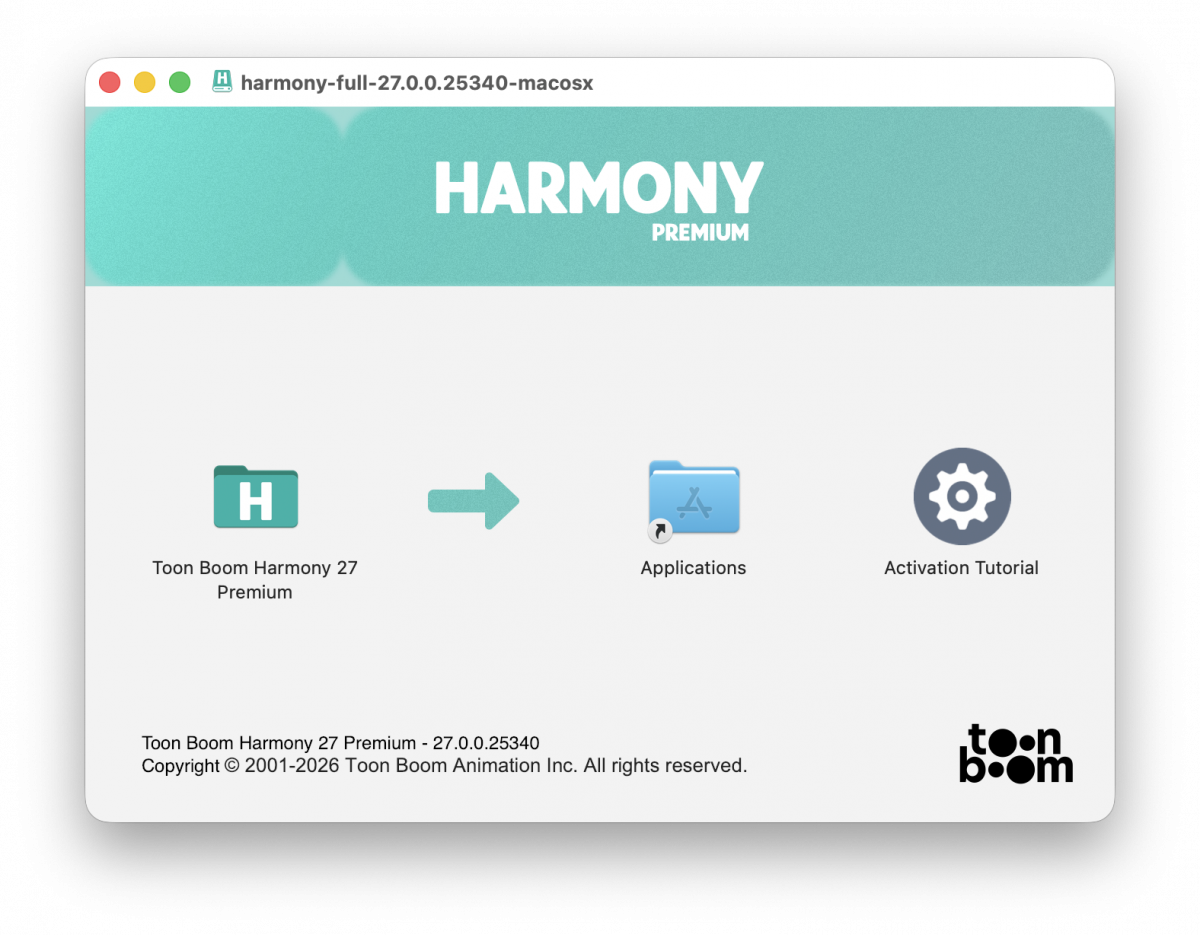
Drag the Harmony Application into your Application folder. Once it has installed there, you may delete the .dmg file and eject the Harmony installation drive on your Desktop.
Once you have installed Toon Boom Harmony or Storyboard Pro, run either software. If this is your first time using Harmony or Storyboard Pro on your computer, or if your license expired, the License Wizard will launch. Sign into the License Wizard with the same email and password you used when making your Toon Boom account.
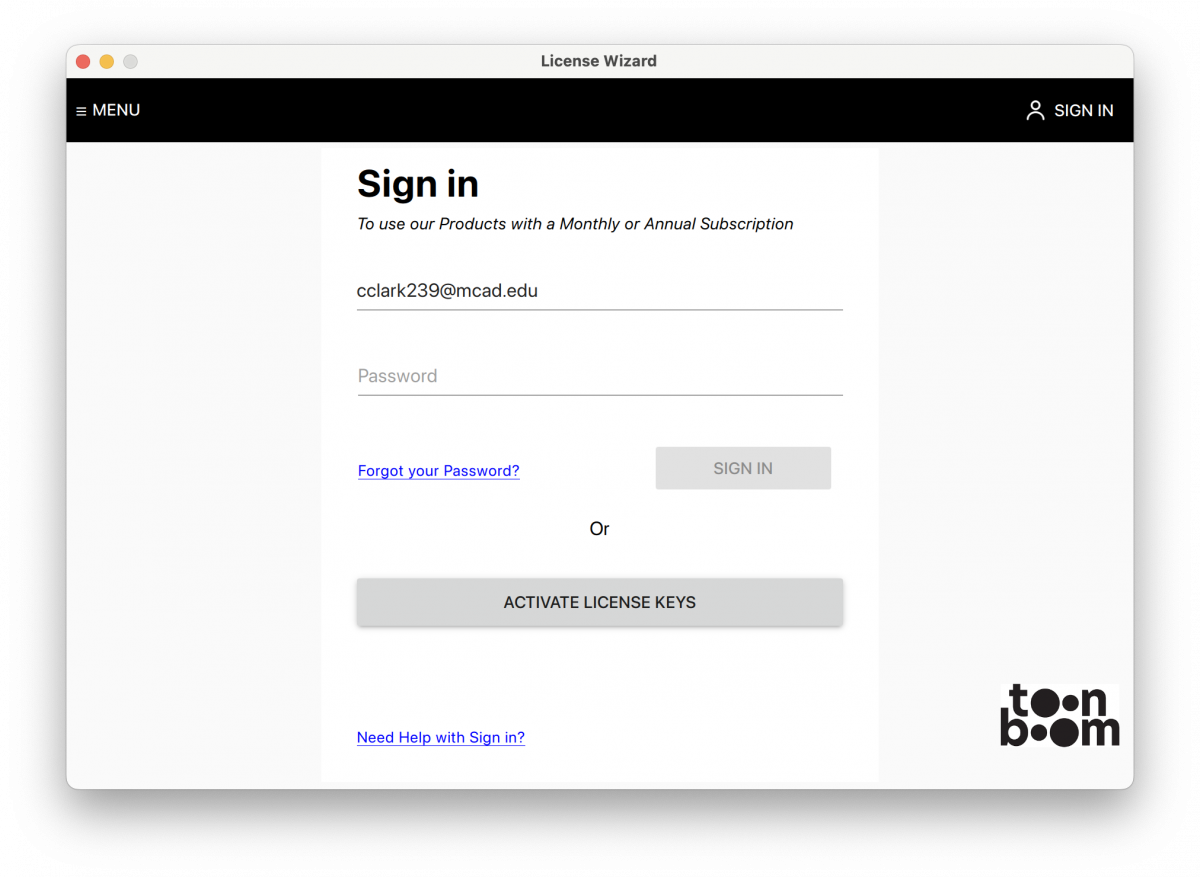
Once you have succesfully signed in, Toon Boom will generate your licenses. Click Activiate next to either or both licenses if prompted. You may now close the License Wizard and open your software again.
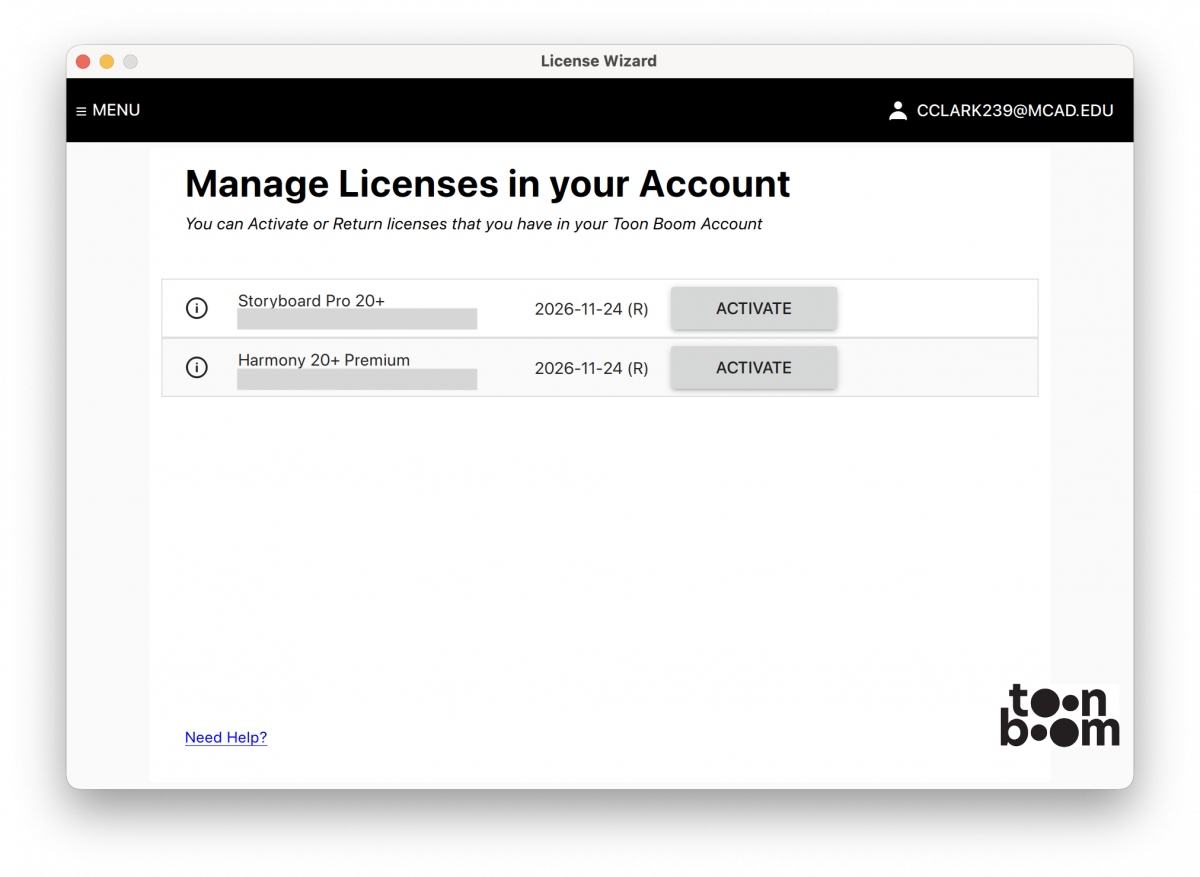
You will now have an active Toon Boom Account and licensed software! If you run into any problems, reach out to the Animation Lab Technician for assistance.
Toon Boom Renewal
Log into coe.toonboom.com. Once you get to this screen, select the Download your Software option.
You will be brought to the download screen. If you notice a yellow banner with an option to renew, select Renew now.

(If you do not have the option to renew, follow the steps in the “Renewal If Your Access Expires” section.)
The page should then reload, and the page should just display how many years you have left in the program. The renew banner should be gone.
You should now Open Harmony or Storyboard Pro on your computer.
If the License Wizard does not automatically launch, Click the application name in the top left corner of your screen, then choose Harmony (or Storyboard Pro) Tools, then License Wizard.
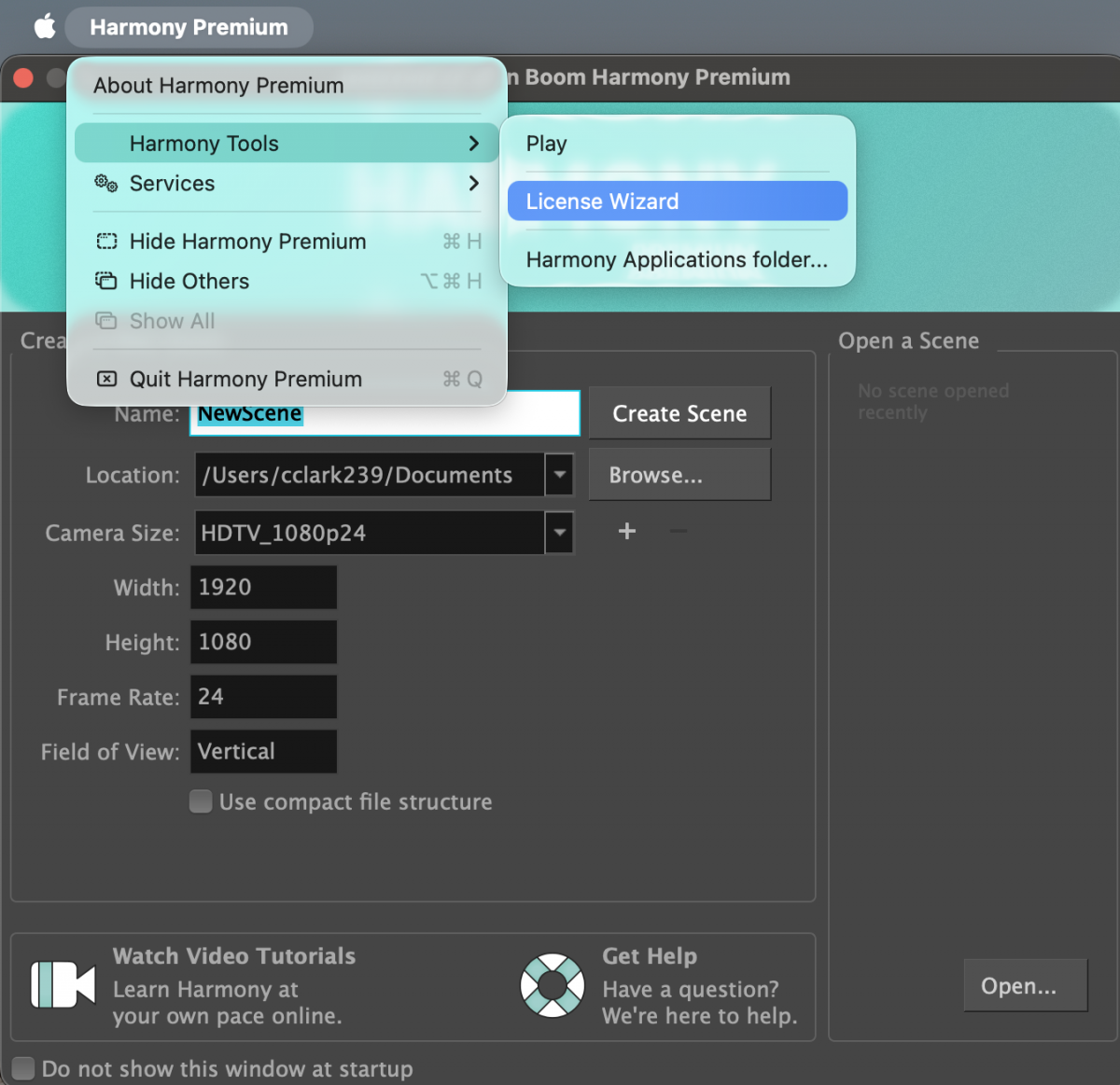
Sign into your account on in License Wizard.
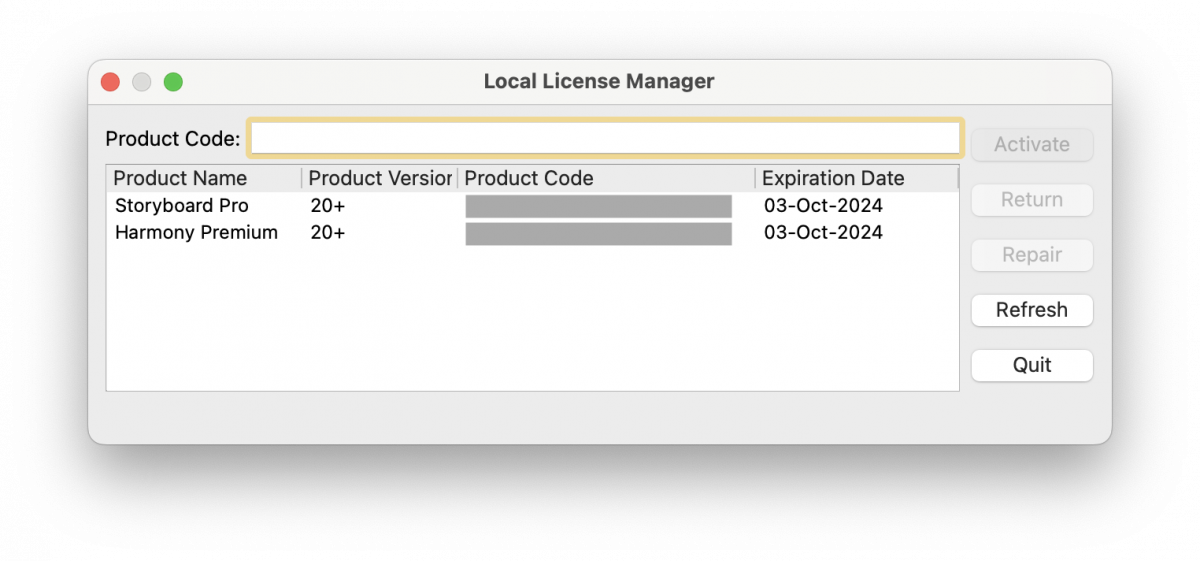
A window will pop up showing your available licenses. If you still have active licenses from last year, select Return. Select Activate on the two new licenses if they do not automatically activate.
You can now check that your licenses are active for the school year by selecting Menu then Manage License Keys.
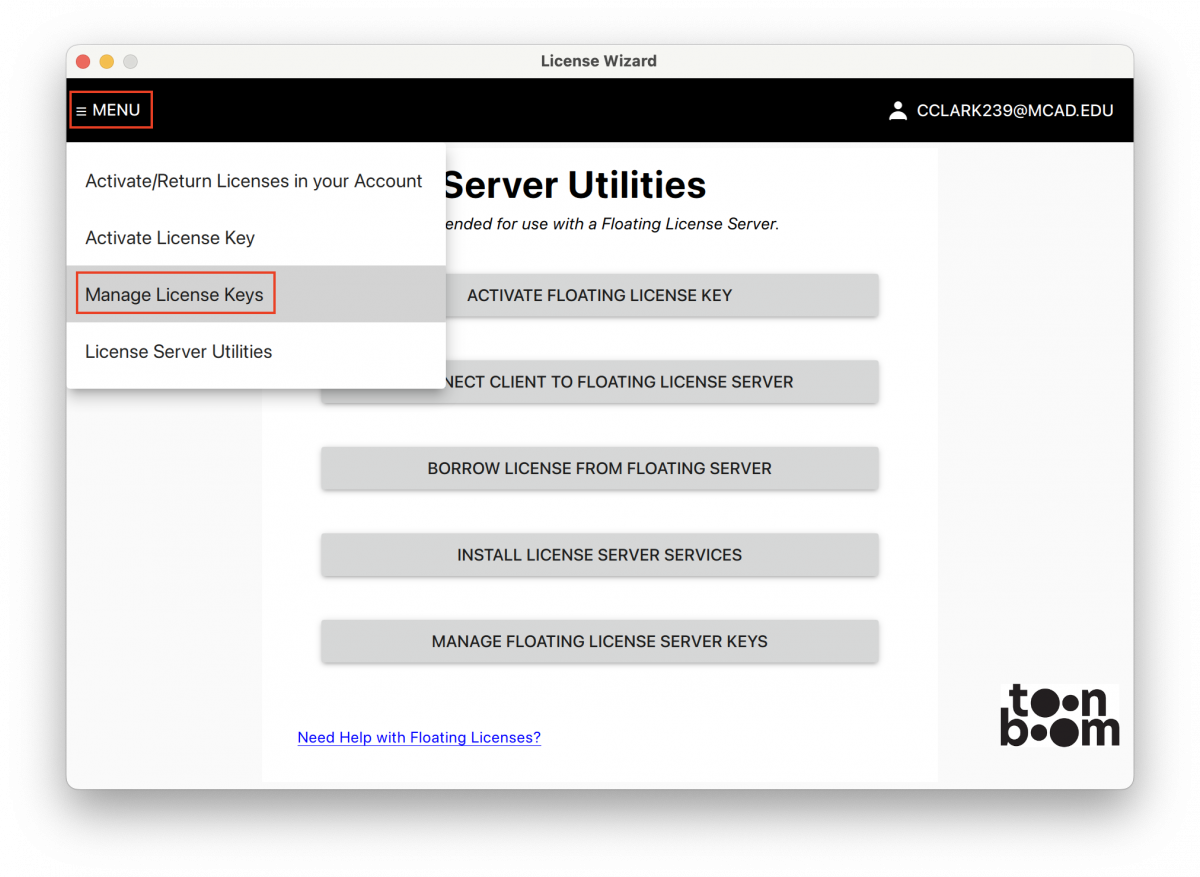
This is what they should look like.
Toon Boom Renewal If Your Access Expires
Sometimes, your COE License access will expire before you have completed your degree.
If this happens, follow these steps:
Log into coe.toonboom.com. Select the Download your Software option.
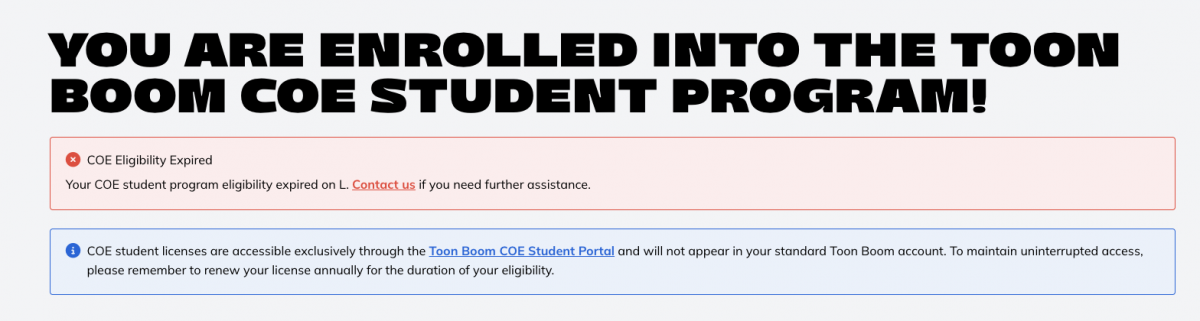
You will be brought to a new screen, in the red top banner, click the link on the word “Contact us”.
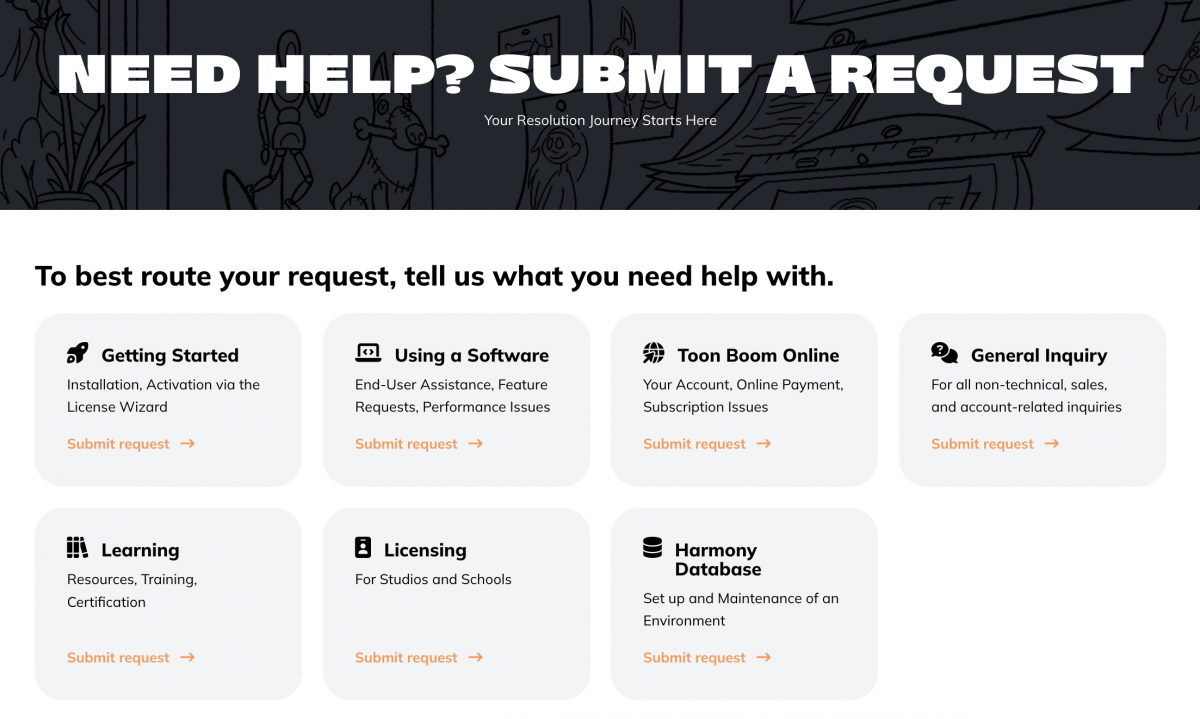
You will be redirected to a support page, select “Licensing".
You will be directed to a contact form.
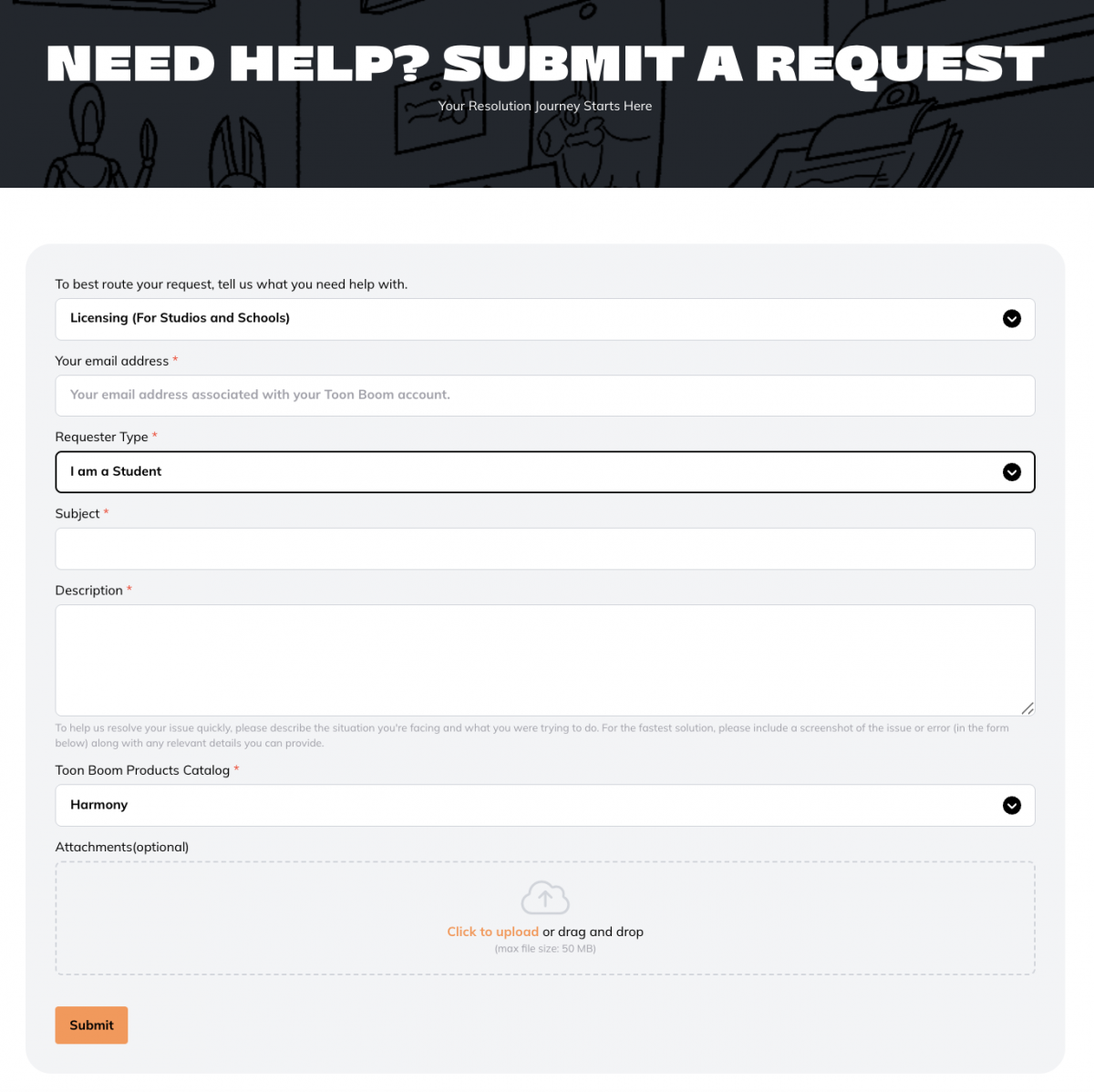
Fill out the form with the following information:
Select “Licensing (For Studios and Schools)”
Enter your short form MCAD email address
For "Requester Type" choose "I am a Student"
For the subject, write something like “MCAD COE License Access Expired Early”
In the description box include the following information:
a. You’re a current MCAD student b. Your access expired prematurely c. You need an extension to your access to finish your degree. The amount of time you need will vary, but make sure you request as much time as you need to complete your classes and graduate
Select either Harmony or Storyboard Pro for "Toon Boom Product Catalog"
Once the form is filled out, click Submit. You do not need to fill in any other boxes on the form.
You will recieve an email response back from Toon Boom support within 24 hours.
Once they extend your access, activate your license in the program. Open Toon Boom Harmony or Storyboard Pro. Under the application name at the top left of your screen, select License Wizard.
Sign into your account on the License Wizard.
If prompted, activate your new licenses.
You are now ready to use your Toon Boom programs!
If you run into any problems or need additional help please reach out to Charis Clark (cclark239@mcad.edu).