
Autodesk Sign Up
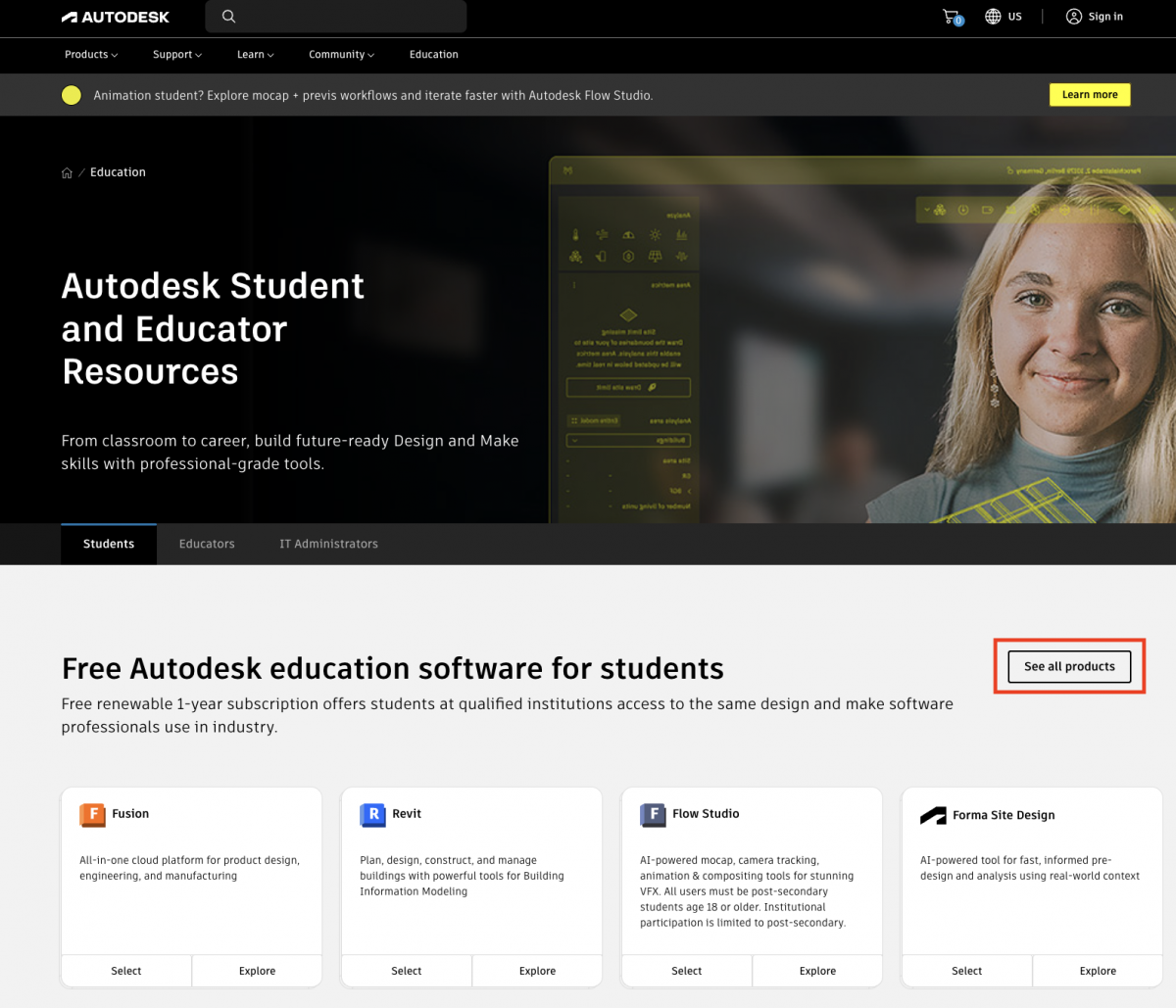
To sign up, follow this link to Autodesk’s education homepage. Click "See all Products"
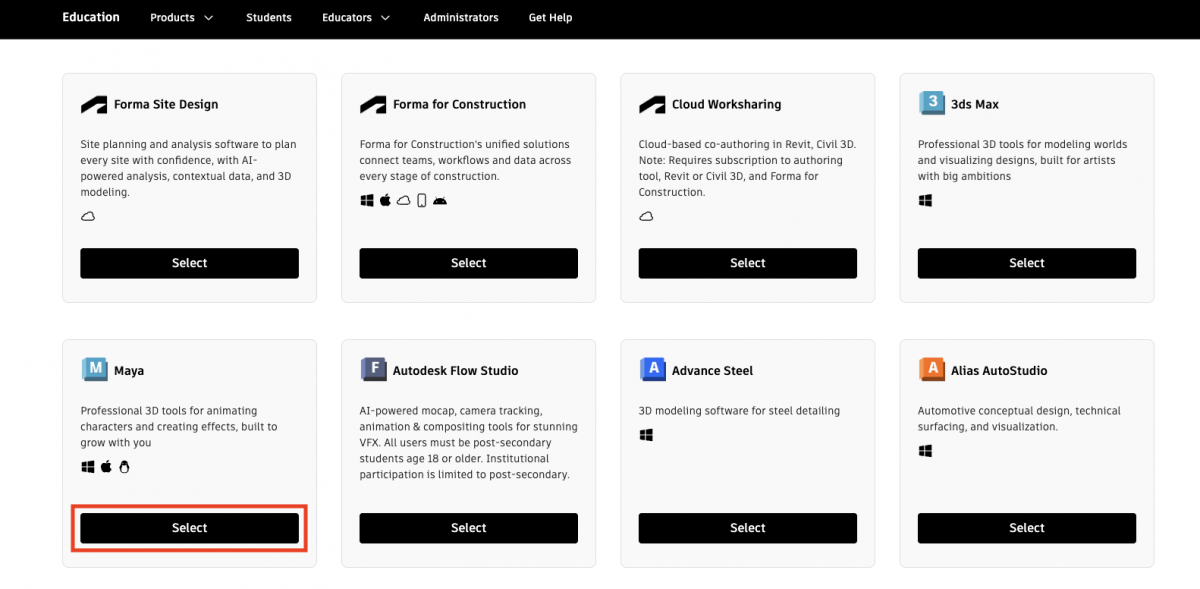
On the list of applications, scroll down until you find Maya. Click "Select".
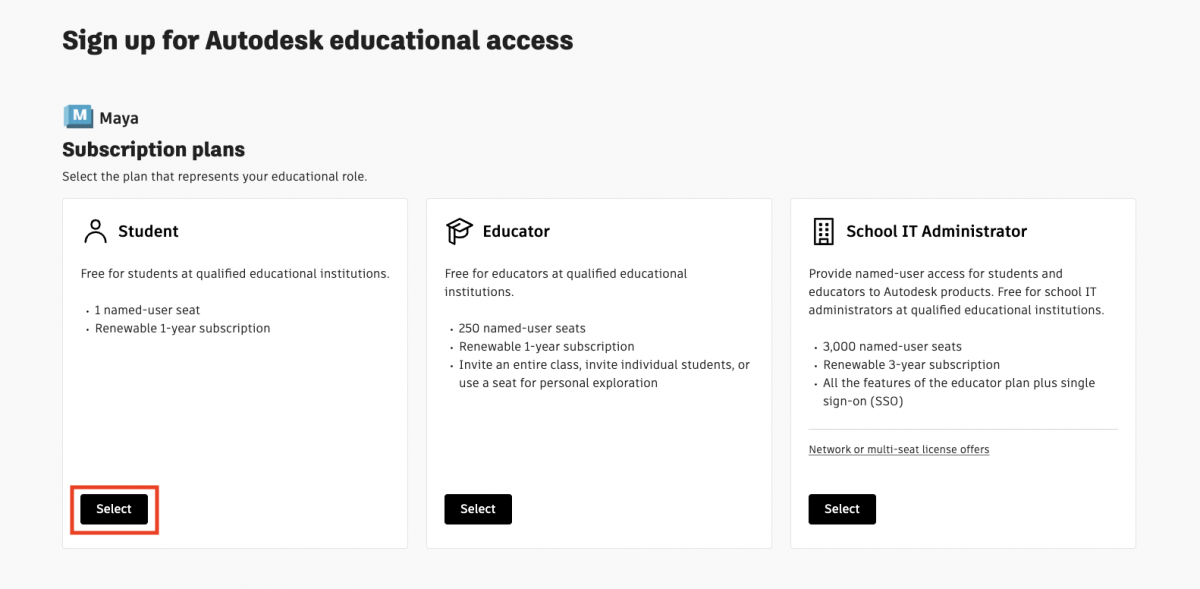
When asked which Subscription Plan you would like to access, choose "Student".
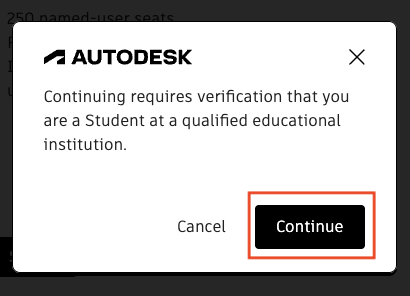
A pop-up will appear asking you to confirm your educational information, select "Continue".
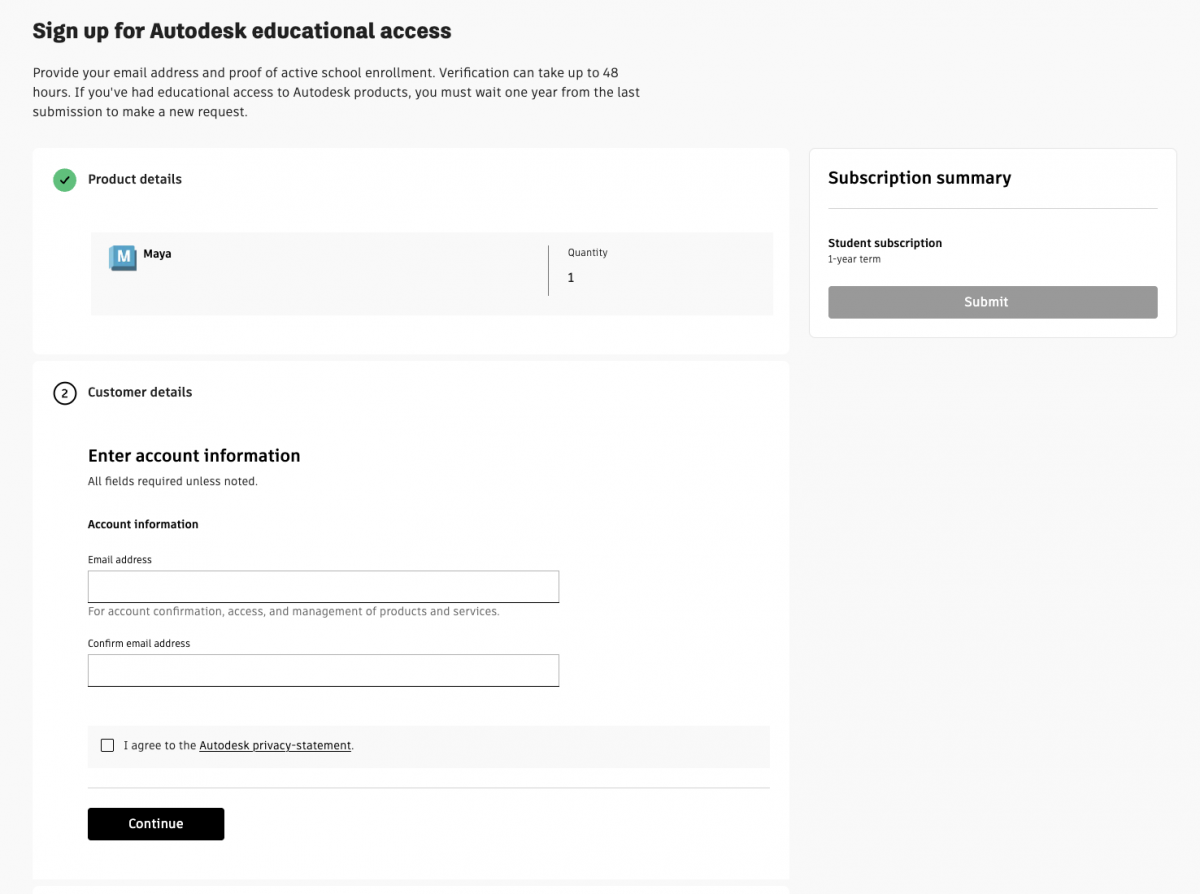
You’ll then be asked to set up your Education profile, enter your Short Form MCAD email address.
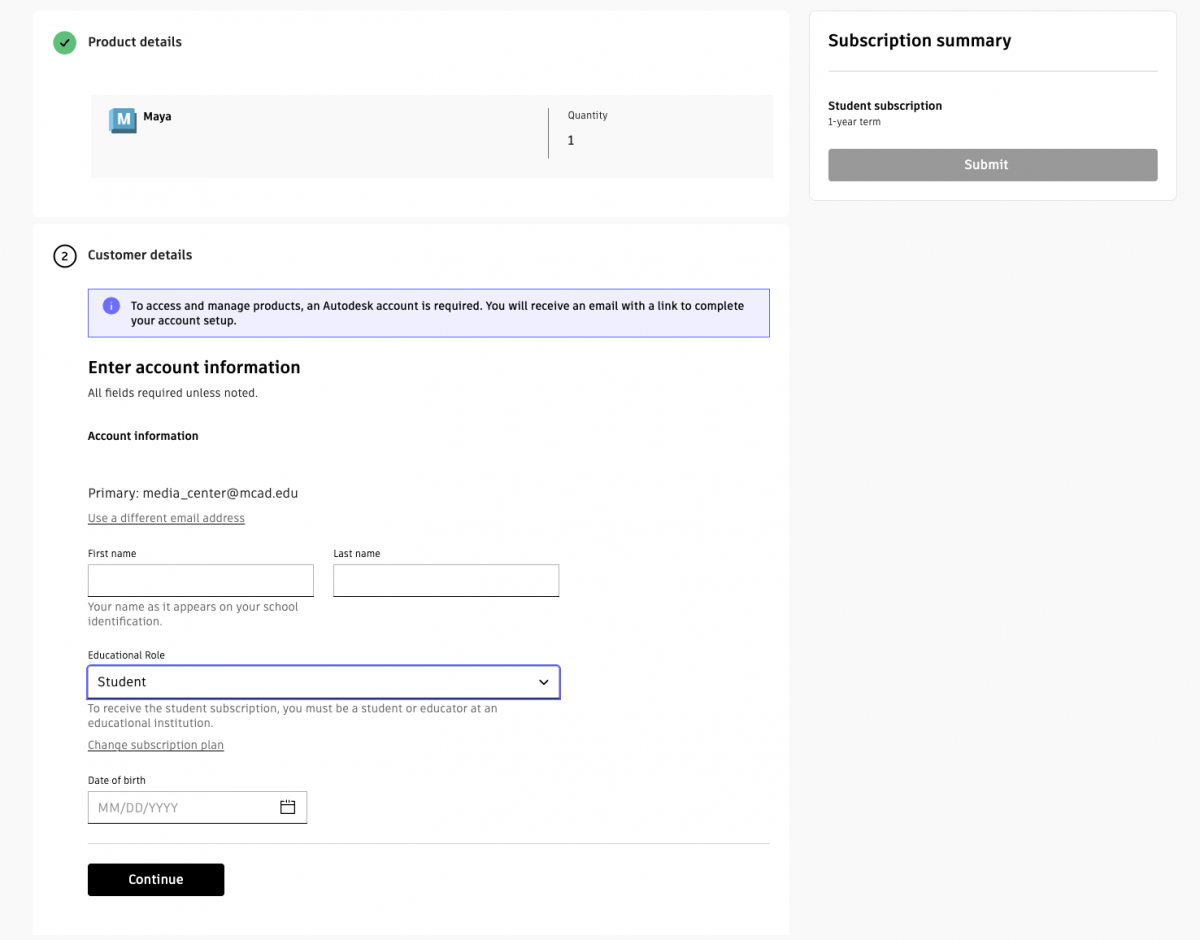
It will then as for your name, enter your Prefered First and Last Name. For your Education Role, choose Student. Then enter your birthday.
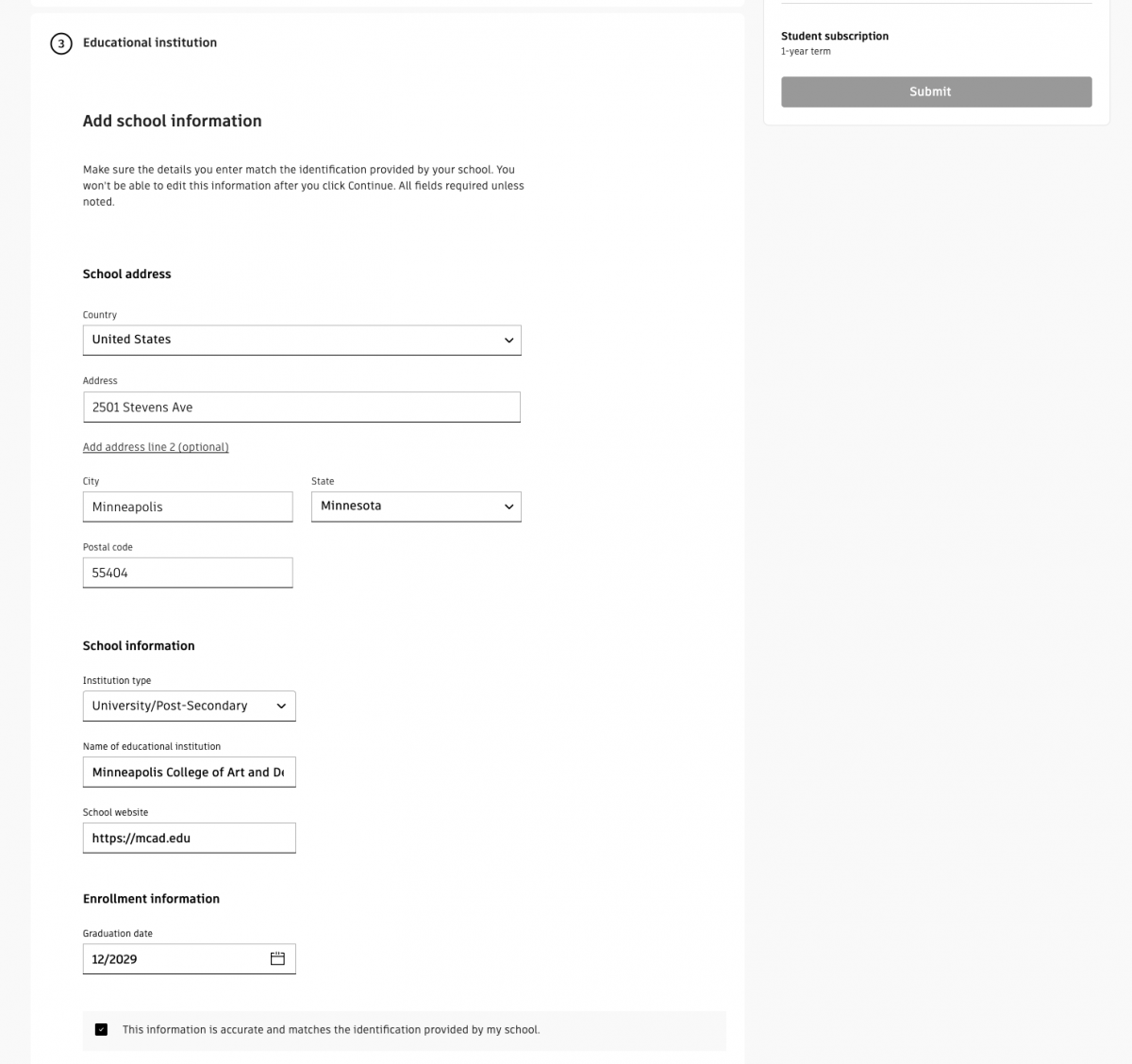
Then fill out the information for MCAD using "Minneapolis College of Art and Design" in the Name of Educational Institution box.
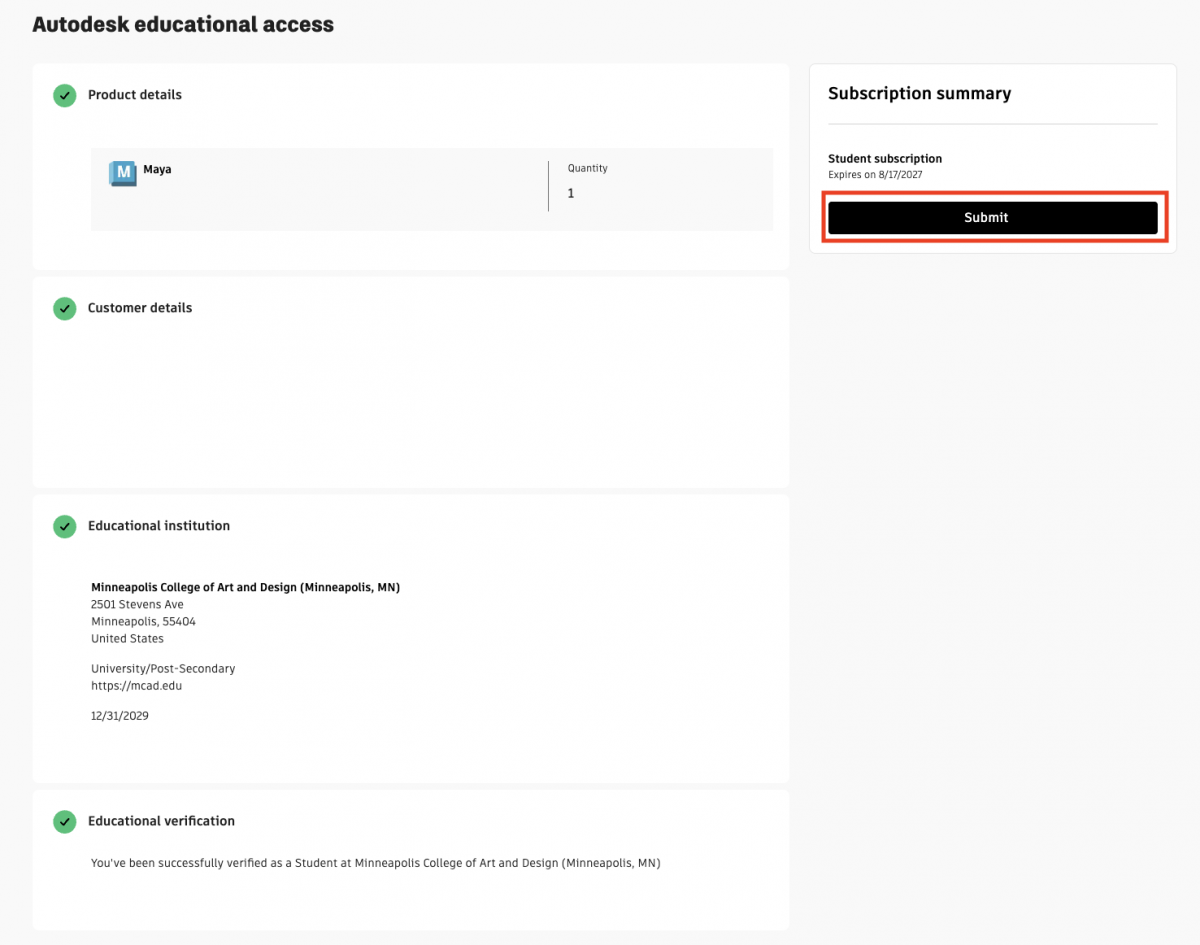
Finally, it will verify your access. When it has, the "Submit" button under Maya will turn black. Click it to submit your access form.
You will then get an email requesting you confirm you account. When you get that email select "Complete Account Setup"
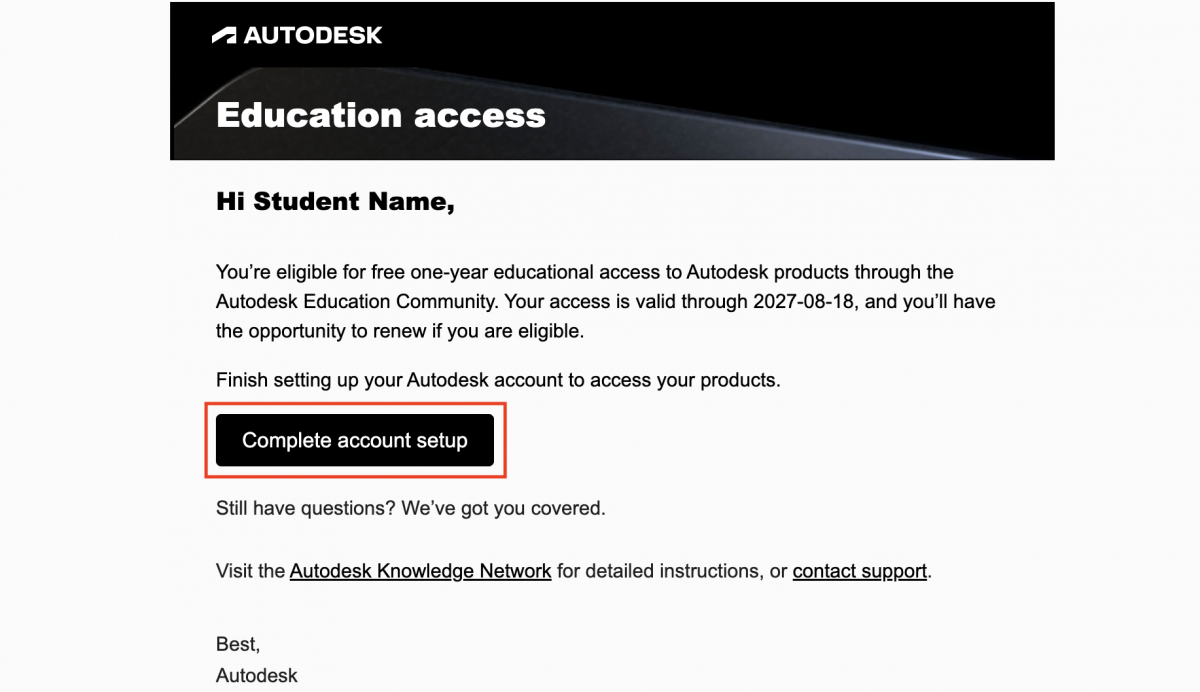
You will then be asked to create a password. Once you do that, you'll land on your account page.
To Access your software, click on the profile icon in the top right corner of the Autodesk Website and select "Products and Services".
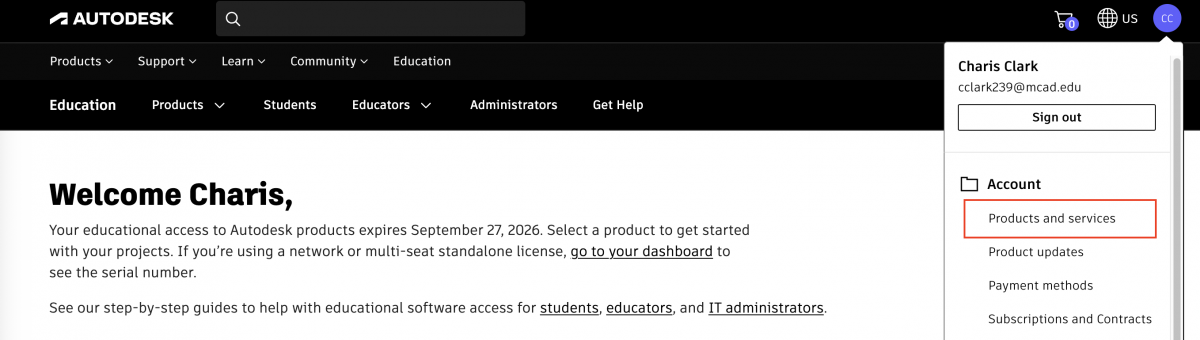
Scroll down to Maya and select View Options
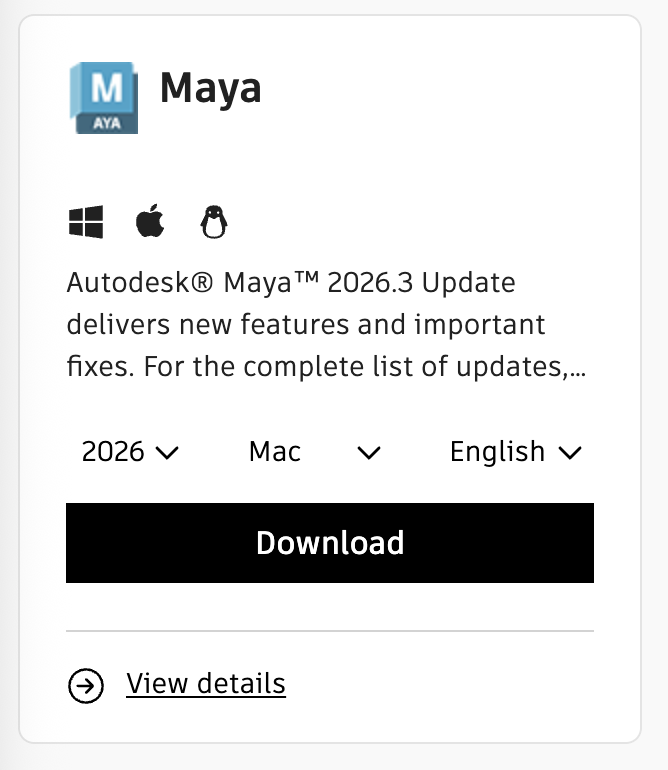
Choose your operating system at the top and as well as which verison you'll need.
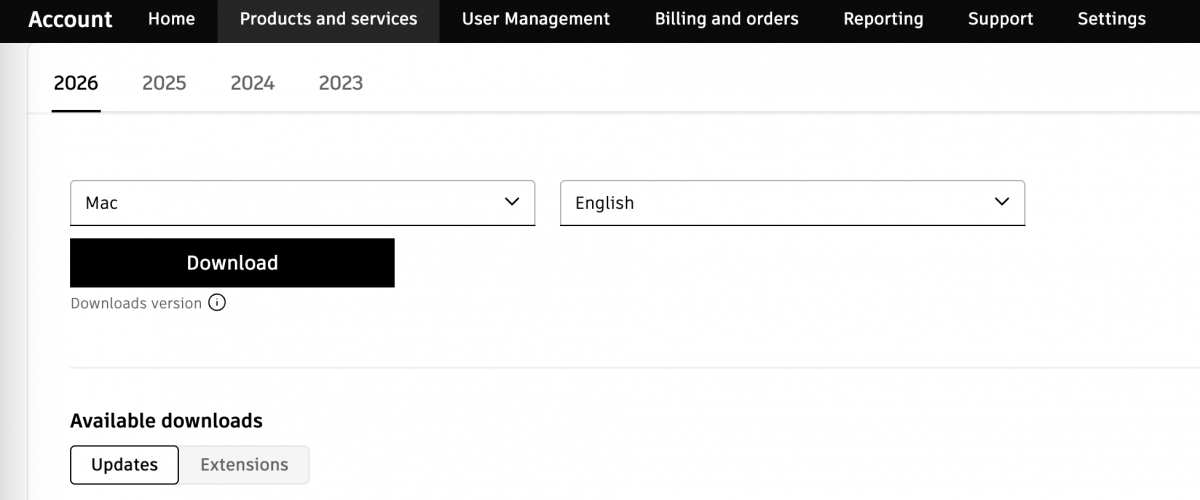
Then if you need a different verison than the one Autodesk defaults to, under Updates, choose which verison of the software you'd like and download that installer.
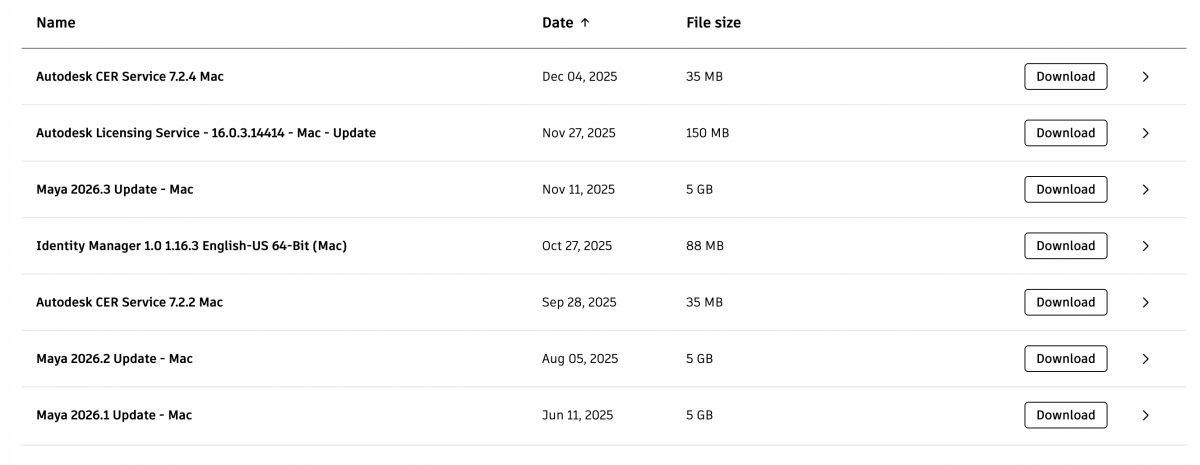
Follow the on-screen prompts to install Maya on to your computer. Once Maya is installed, open in via your Applications Folder.
Once you open up Maya, a window will open in your default browser. If you're not signed into your Autodesk account, it will ask you to sign in.
From there Maya should open as normal!
Autodesk Still Not Allowing Access?
If Autodesk says you don't have a license after you sign in, you may need to assign yourself Maya in your Autodesk account.
Sign into your account on the Autodesk website. Click the profile icon in the top right corner then go down to Products and services.

Go down to User Management > By User, then click your name.
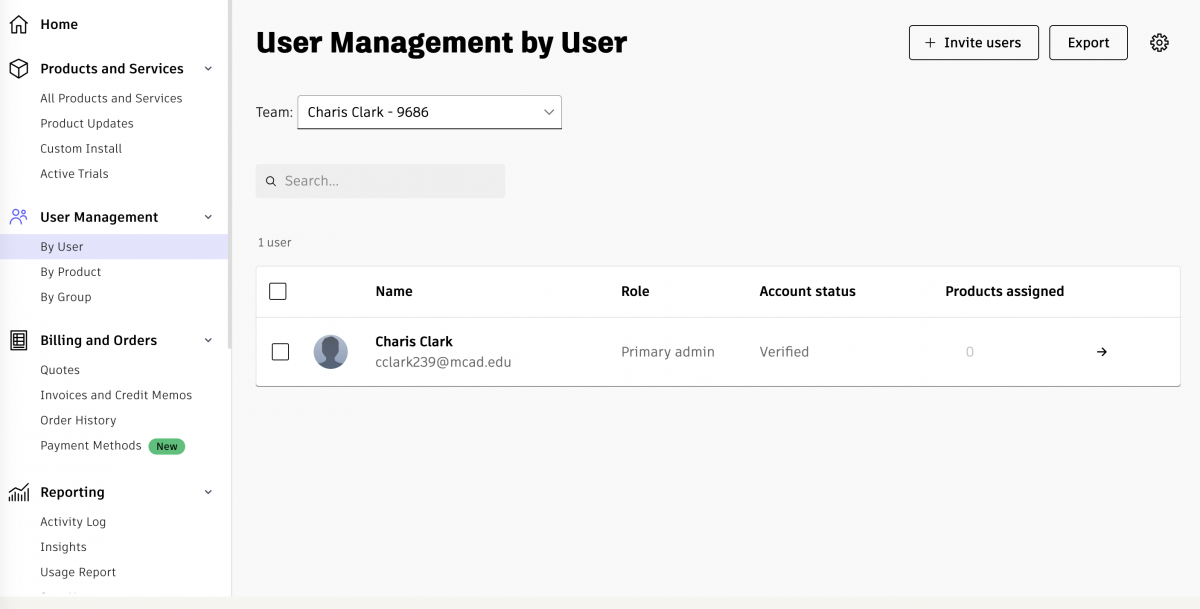
Then click Assign.
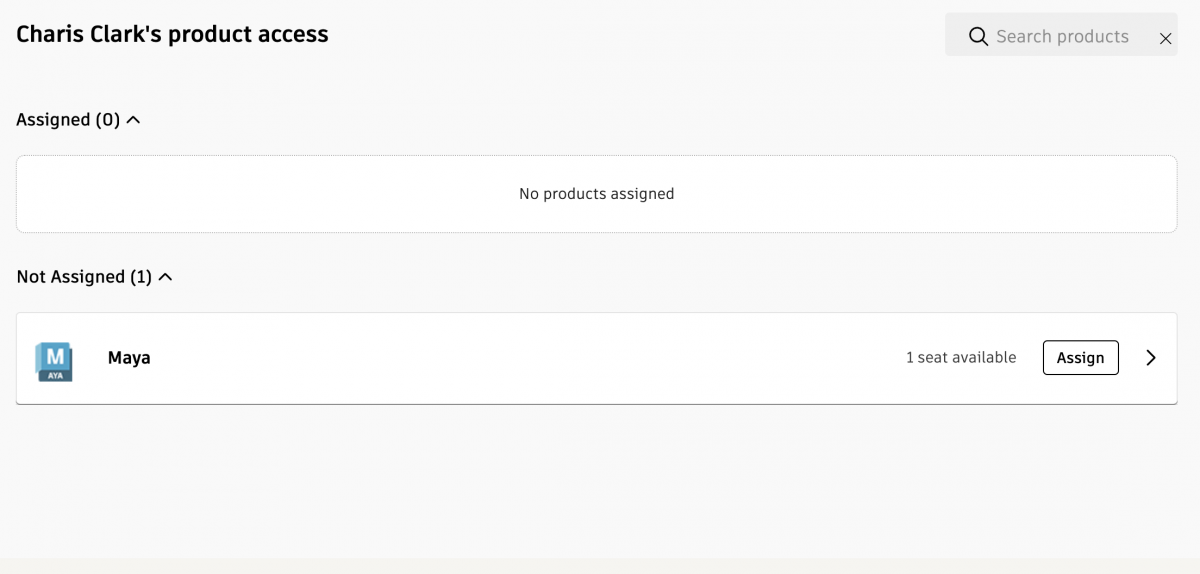
Then try to reopen Maya. Your Autodesk account should now have full access to Maya!
To get continued access to Autodesk products all students are required to renew licenses every year. Autodesk will send you an email when it's time to renew your access.
If you run into any problems with sign up, reach out to the Animation Lab Technician Charis Clark (cclark239@mcad.edu) for assistance. Maya can always be opened on Animation Studio and other Computer Lab computers without a student license.