
As part of MCAD’s Adobe Creative Cloud access you have access to the integrated Cloud Storage options. These options allow you to save your files to Adobe’s Cloud Storage service and sync across devices you are logged in to. This may be convenient but it can cause some complications.
• The MCAD Help Desk has seen an issue where users who have created very large files that have been saved to the Adobe Cloud Storage essentially ‘crash’ when trying to open because they are so large, and then the file becomes corrupted and unusable. The Adobe Cloud Storage service does not seem to save ‘past’ versions of files so there is then no way to recover the corrupted file.
• The MCAD Service Bureau has seen similar issues when users try to print large files saved in the cloud. Basically the file is so big that it can’t transfer across the internet fast enough to print which has lead to nothing printing, prints erroring and stopping in the middle of printing, and similar issues.
The Adobe Cloud Storage is a useful option for backing up your work files but it should not be the only option you use to save your work.
Here are some suggestions and useful reminders:
1) Invest in a portable hard drive. Save your work frequently and back it up from your local computer often. You never know when you might experience a catastrophic data loss or accidentally save over an important file. Losing weeks or months of work is not fun.
2) When you are in the middle of working on a project, save your files to your local computer. Work from those local files. Print those local files. Use a cloud storage or portable hard drive as backup options.
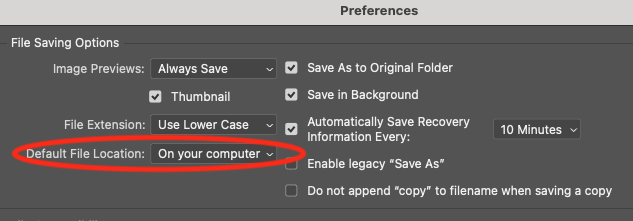
3) Adjust or be aware of the default settings in the Adobe apps for where they are saving your work. In Photoshop, for example, you want to go into the main Photoshop menu > Settings > File Handling. Then make sure the ‘Default File Location’ is set to your computer and not Creative Cloud.
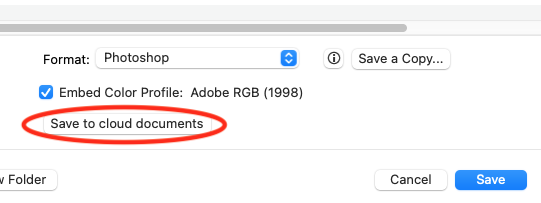
4) Also note that while working, when you save a file, you may be presented with the option of saving your file to the cloud. We suggest you avoid that, unless you have already saved your file(s) locally. Illustrator and InDesign have similar options and settings.
5) Always be aware and mindful of where you are saving your work! REMEMBER: If your files are only saved to one location, then your files are not backed up! Check out our KB article on backup solutions for options.