
These are instructions for Faculty and Staff reviewing forms. If you are a Student looking for instructions to fill out forms:
- here are instructions for the Course Capacity Override Requests and Prerequisite and Corequisite Waiver Requests forms and
- here are instructions for the Course Withdrawal form.
Table of Contents
Approve or ReRoute (Deny) Requests
Video Demo for Faculty & Staff
To review form submissions, log into my.mcad.edu and go to the Form Review tab.
If you have requests waiting for you, click the underlined link, which displays how many pending requests you have.
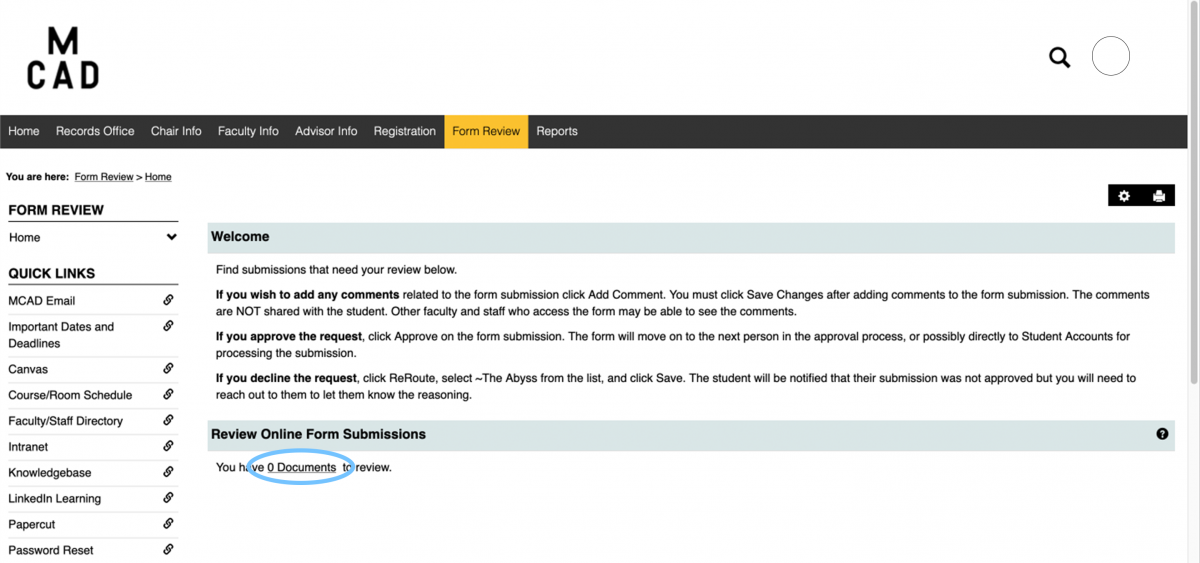
All Pending Requests
Circled in red is a dropdown list where you can select which types of requests you want to review. In my example I selected Course_Capacity_Override_Request, indicated by the checkmark.
The blue box displays any pending requests for the selected category. At the far left, inside the blue box, is the clickable link “View”, which you can click to review the individual submission.
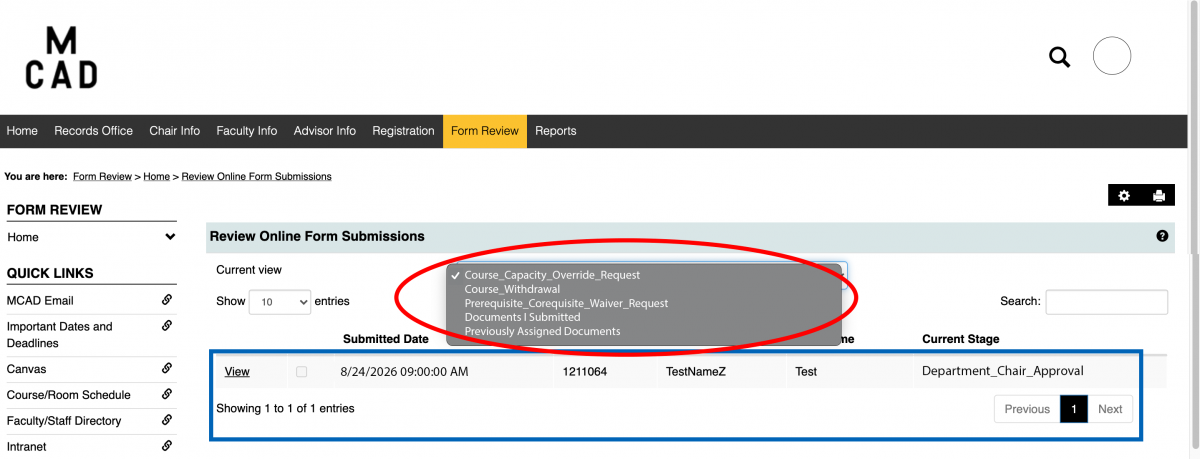
Review Individual Requests
After clicking “View” for an individual request, you’ll see all the information from the student’s form.
For Course Capacity Override Requests and Prerequisite and Corequisite Waiver Requests, you can scroll to near the bottom of the page to find an overview section with the student’s information and the selected course.
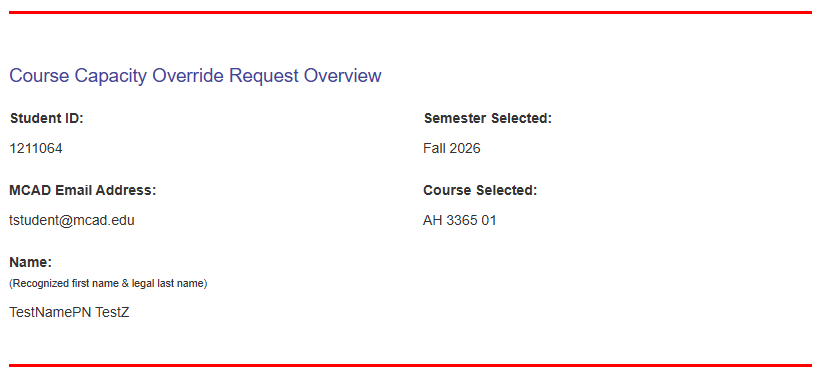
For Course Withdrawals, the student’s information, including their email address, is included at the top of the form. The link to view the current schedule is only for students while they are filling out the form. Scroll down to find the Course Withdrawal List. The table will show you all the courses that the student has requested to withdraw from.
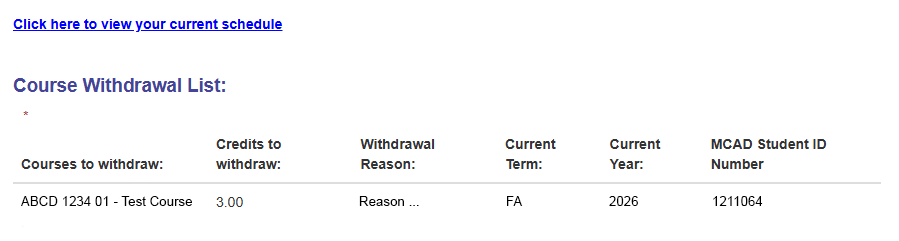
Approve or ReRoute (Deny) Requests
At the top of that page, you will see the following menu:

Looking at the options from left to right:
Approve
If you approve the request, click Approve.
ReRoute (Deny)
If you do NOT approve the request, click ReRoute. A drop down list will become available where you should select ~The Abyss.
The Abyss is a form location weI created so that we do not lose the record of denied requests and they will NOT end up with Records for processing.
After selecting ReRoute and ~The Abyss, click Save. The student will receive an email stating that someone denied their request to add/drop or withdraw courses but they will not know why. You will need to contact the student to explain, if you did not already do that.
Add Comment
Click Add Comment, type your comment in the box, and click Save.
The student will NOT receive the comments. Anyone reviewing the form submission after you, for example other department chairs, Student Affairs, Financial Aid, or Records, will see the comments. Your comment will appear near the bottom of the page. In the Workflow Files/Comments section.
Video Demo for Faculty & Staff
Please note: Beginning Fall 2026 the Add/Drop Courses form is no longer used however, the process to review and approve or deny applies to all forms.