
These are instructions for students using the Register for Courses tool, and filling out the Course Capacity Override Request and the Prerequisite and Corequisite Waiver Request forms. If you are Faculty or Staff looking for instructions to review requests, you can find that article in Reviewing Form Submissions on myMCAD.
Table of Contents
Course Capacity Override Request
Prerequisite and Corequisite Waiver Request
Please note: Beginning August 2026, students will add and drop courses using the Register for Courses link on the Registration tab.
Adding and Dropping Courses
The Add/Drop period is the first five days of the semester. Courses that begin after the first week of the semester will be available to add or drop again the first five days the course meets. For weekend workshops, the add/drop period will be limited to the first day of the course. Use the Course Search tool or the Course Schedules on the Registration tab of myMCAD to find the dates of upcoming courses.
On the Registration tab, you can find the Register for Courses link in the My Registration and Course Search section.
Adding or dropping a course using the Register for Courses tool will immediately change your schedule - you will immediately be added and dropped from the courses you select. There is no guarantee you will be able to be added back to a course you drop.
If waitlisting is turned off and you want to request to be added to a full course you can fill out a Course Capacity Override Request form on the Registration tab.
You may request an override for course prerequisites or corequsites by filling out the Prerequisite and Corequisite Waiver Request form on the Registration tab.
If you drop more credits than you add, Financial Aid will be notified and may contact you.
Do not use the Register for Courses tool if you are planning to drop all of your courses. To drop all enrolled courses, contact Student Affairs at student_affairs@mcad.edu.
Course Capacity Override Request
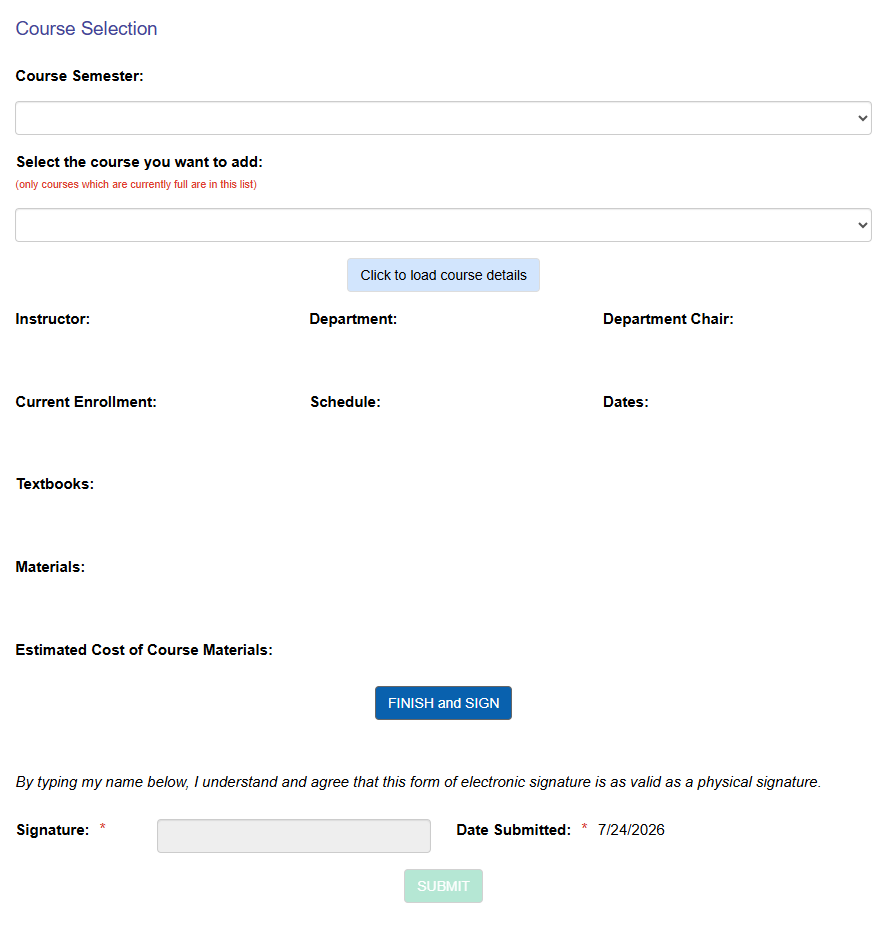
This form is for requesting to be added to a course which is already full/at its enrollment capacity. This form will be routed to the department chair responsible for the course. Overrrides are entirely at the discretion of the department chair. If they approve, the form will route to the Records Office for processing. You will not be able to register for the course yourself, but after processing you will see the course on your schedule. This form will only allow one course per submission.
If any of your information is incorrect on the form, contact records@mcad.edu
- Select a semester.
- Select the course you want to add from the list. Only courses which are currently full for the selected semester will be available on the form.
- Click to load course details button.
- Click the finish and sign button.
- Type your name.
- Click the submit button
- Contact helpdesk@mcad.edu if you don’t receive a confirmation email after you submit the form because it’s likely that there was an error and we didn’t receive your request.
Prerequisite and Corequisite Waiver Request
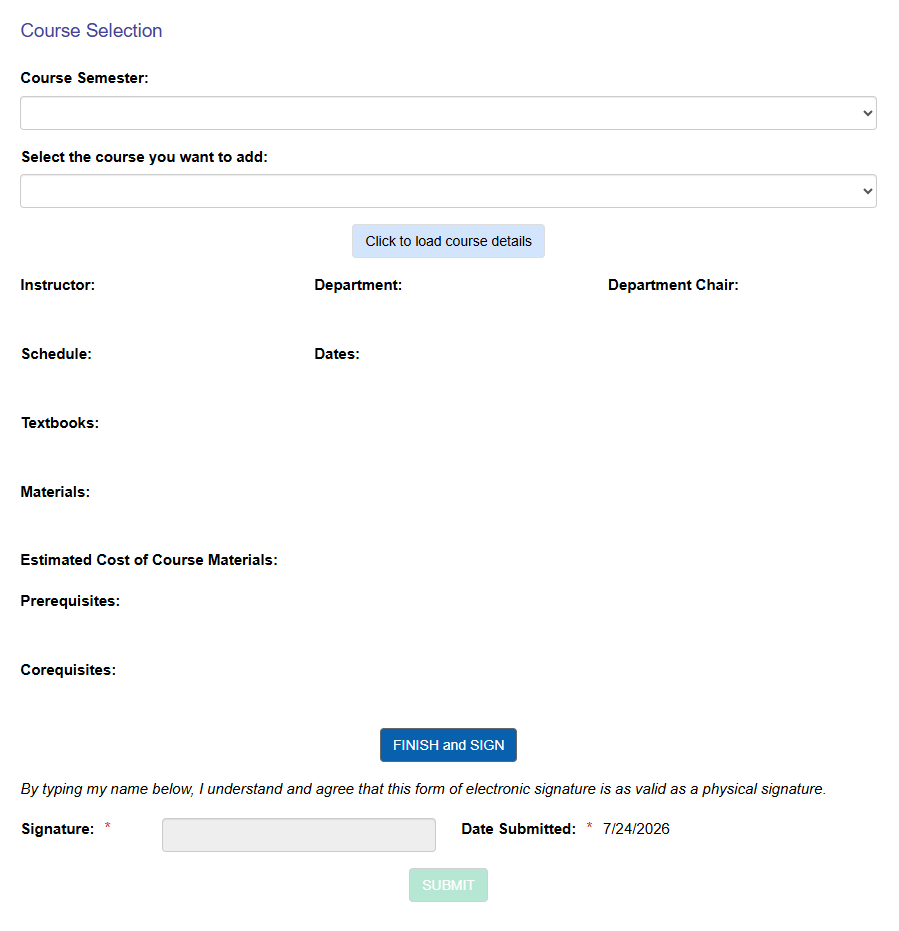
This form is for overriding prerequisites or corequisites for a course you would like to register for. This form will be routed to the department chair responsible for the course. Overrides are entirely at the discretion of the department chair. If they approve, the form will route to the Records Office for processing. You will not be able to register for the course yourself, but after processing you will see the course on your schedule. Please note that these forms will only be processed after your registration period opens for the upcoming semester, although you are welcome to submit your form ahead of time. This form will only allow one course per submission.
If any of your information is incorrect on the form, contact records@mcad.edu.
- Select a semester.
- Select the course you want to add from the list. Only courses with prerequisites or corequisites scheduled for the selected semester will be available on the form.
- Click to load course details button.
- If the selected course has more than one requirement, you will be asked which requirement you wish to be waived.
- Click the finish and sign button.
- Type your name.
- Click the submit button
- Contact helpdesk@mcad.edu if you don’t receive a confirmation email after you submit the form because it’s likely that there was an error and we didn’t receive your request.
Troubleshooting Forms
If you receive an error at the top of the form when when you click the SUBMIT button that reads:
There was an error in FinalizeSubmission: Jenzabar.ContainedForm.Extensions.ProcessInternetSubmissions.Implementations.InternetSubmissionProcess Object reference not set to an instance of an object.
Path: /Submit
Try the following:
- Log out of myMCAD and close all browser windows.
- Open a new browser window (opening in Private or Incognito is even better).
- Log into myMCAD again and find the form again. If there are saved versions of the form, delete the saved forms and start a new one.
- Finally fill out the form again and if you receive the error again, take a screenshot and email helpdesk@mcad.edu