
Connecting Your Apple Computer to the MCAD Wireless Network
See also: Wireless for Windows, Wireless for iOS, and Wireless for Android
How to connect to the MCAD wireless on MacOS:
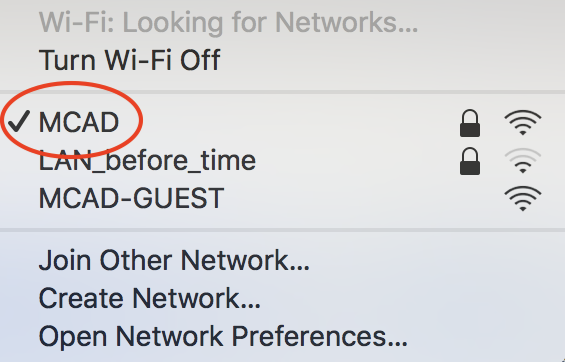
Click on the WiFi symbol in the top bar of your computer and select “MCAD.”
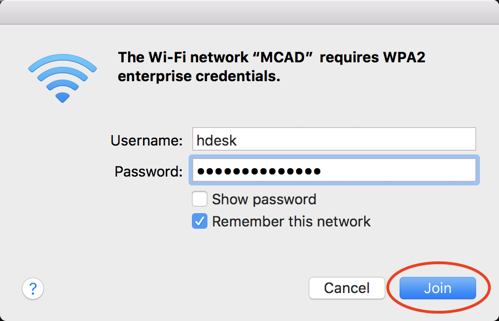
Enter your MCAD login credentials when prompted and click “Join.”
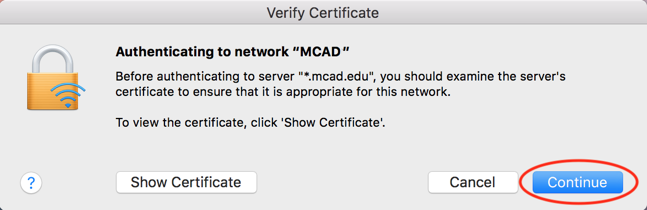
In the window that pops up, click “Continue.”
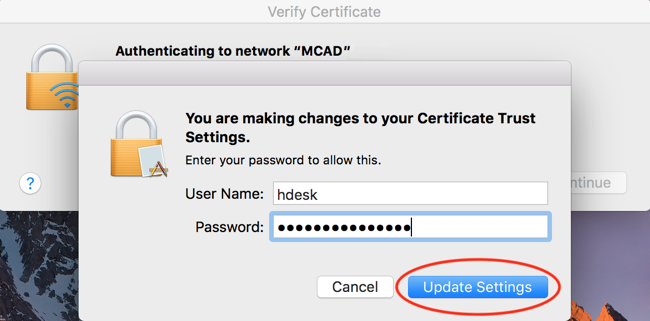
Enter your computer’s admin password (not your MCAD login) when prompted and click “Update Settings.”
If you've entered your credentials correctly and accepted the certificate you should get an IP address from our servers and connect to the internet. If you encounter any issues with this process, please contact the MCAD Help Desk at helpdesk@mcad.edu or visit us in our office in room 319 during our posted office hours.